Install Tabcake in Chrome
About two minutes, on a computer with Chrome. You need a free account to connect it.
Tabcake is not in the Chrome Web Store yet, so for now you add it from a ZIP file. When it is listed, you will be able to install it in one click.
Steps
Step 1: Download Tabcake
Click the download button on this page and save the ZIP file to your computer.
Step 2: Extract the ZIP
Open your Downloads folder. On Windows, right-click the file and choose Extract All. On a Mac, double-click it. You get a folder.
Step 3: Open Chrome's extensions page
In Chrome, type
chrome://extensionsin the address bar and press Enter.Step 4: Turn on Developer mode
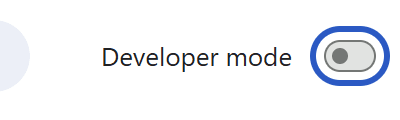
Use the Developer mode switch in the top right corner of the page.
Step 5: Click Load unpacked
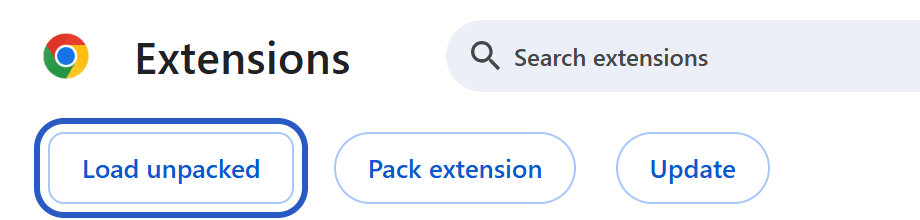
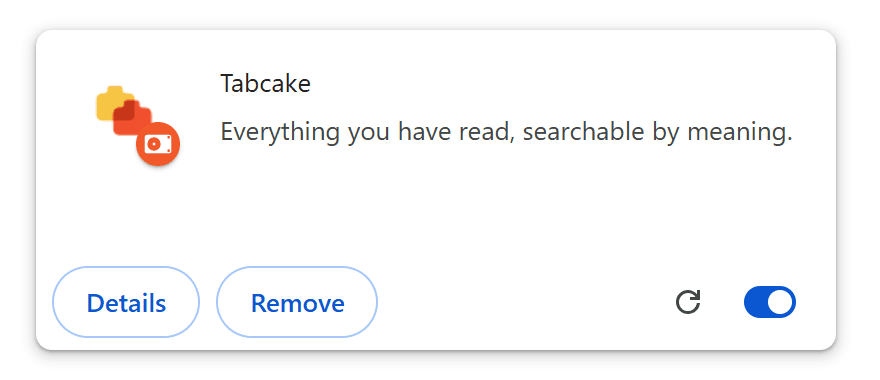
A new row of buttons appears. Click Load unpacked and choose the folder you extracted in step 2. Tabcake then shows up in your list.
Step 6: Pin it to your toolbar
Click the puzzle icon at the top right of Chrome, then the pin next to Tabcake, so it is always one click away.
Step 7: Connect your account
Click the Tabcake icon and choose Sign in with Tabcake. Your dashboard opens and links this browser. From then on, the pages you read become your knowledge base.
Ready to start?
Download the extension, or create your account first.